Part 2 - The Grafana Stack
This is Part 2 of the Observability tutorial. The runtime from Part 1 starts exporting its logs, traces and metrics over OpenTelemetry to a local Grafana stack, and you find the counter's activity again in Loki, Tempo and Prometheus.
It continues where Part 1 left off: my-runtime.yml exists in myrmic-quickstart/ and the runtime is running in Terminal 1. Two things change: the myrmic binary, and three lines of configuration.
Step 1 - Build Myrmic with OpenTelemetry Support
The OTel exporter is opt-in at compile time. The released packages and the default source build from the Installation page do not contain it: with an endpoint configured they start normally, print no warning, and export nothing. So the first step is a build with the open-telemetry feature.
Install the packages listed under Install from source on the Installation page, then in Terminal 2, from the root of the cloned repository:
cargo install --path swarm/myrmic-cli/ --features open-telemetry
This builds the CLI and puts it at ~/.cargo/bin/myrmic. The first cargo call also installs the Rust toolchain pinned in the repository's rust-toolchain.toml if you do not have it yet - that takes a minute and prints a few warn: lines from rustup, which are harmless. The build itself takes several minutes (see Build resources); you can go on with Step 2 while it runs.
When it is done, make sure the myrmic you run from now on is that one:
which myrmic
It must print the cargo install location (usually ~/.cargo/bin/myrmic), not /usr/bin/myrmic from the package. If the package wins, put ~/.cargo/bin first in your PATH or uninstall the package. (myrmic --version does not tell the two apart - both print the same version and commit.)
In a real swarm the exporter runs inside each runtime and sends only that runtime's own telemetry. A runtime built without the feature, or without an endpoint, contributes nothing to Grafana, and no other node sends on its behalf - so this rebuild and the configuration of Step 3 apply to every runtime you want to see. The internal DB of Part 1 is different: it is replicated across the swarm, which is why the CLI shows all nodes from any one of them.
Step 2 - Start the Grafana Stack
For local testing, a ready-made Docker Compose file is provided under docker/otel-stack/ in the repository. It starts:
| Service | Purpose | Default address |
|---|---|---|
| OpenTelemetry Collector | Receives OTel data from Myrmic | localhost:4317 (gRPC), localhost:4318 (HTTP) |
| Grafana Tempo | Stores and queries distributed traces | internal |
| Grafana Loki | Stores and queries log streams | internal |
| Prometheus | Stores and queries metrics | internal |
| Grafana | Visualization UI for all of the above | http://localhost:3000 |
Install Docker
Ubuntu ships the Docker engine and the Compose v2 plugin in its own repositories:
sudo apt install docker.io docker-compose-v2
Debian does not have a docker-compose-v2 package. Either install Docker Engine and the Compose plugin from Docker's own apt repository, or use Debian's packages, which give you the older standalone Compose v1:
sudo apt install docker.io docker-compose
Verify the installation:
docker --version
docker compose version     # Compose v2 plugin: "docker compose" with a space
docker-compose --version   # Compose v1: "docker-compose" with a hyphen
The stack works with both. The commands on this page use the v2 form docker compose …; with v1, type docker-compose … instead.
For other platforms, follow the official Docker installation guides.
Optional: Rootless Mode
By default Docker requires root privileges. Running it in rootless mode improves security by not exposing the Docker daemon as root:
sudo apt install uidmap
curl -fsSL https://get.docker.com/rootless | sh
After the script completes, follow the printed instructions to add the rootless socket to your environment. Commands like docker compose up will then work without sudo.
See the rootless Docker docs for more.
Start the Stack
cd <path/to/your/repo/root>/docker/otel-stack
docker compose up -d
The -d flag detaches the stack so it runs in the background. Omit it to see the stack's own log output inline.
Grafana is then accessible at http://localhost:3000 (no login required in the default dev config).
Stop the Stack
Not now - when you are done with the tutorial:
docker compose down          # stop containers, keep recorded data
docker compose down -v       # stop containers AND delete all recorded data (clean slate)
Step 3 - Add the Export Endpoints
Export is configured per signal: each of logs, metrics and traces has its own otel_endpoint, and a signal without one is not exported. Add the three endpoints to the my-runtime.yml from Part 1 - everything else stays as it is:
telemetry:
  db_retention: "1h"
  logs:
    env_filter: "info"
    format: "FULL"
    otel_endpoint: "http://localhost:4317"   # NEW - the collector's gRPC port
  metrics:
    otel_endpoint: "http://localhost:4317"   # NEW
  traces:
    otel_endpoint: "http://localhost:4317"   # NEW
Keep db_retention: the myrmic telemetry commands from Part 1 keep working next to Grafana. The env_filter matters as much as in Part 1 - it decides what is exported, spans included. With swarm=info,warn Loki would receive only the runtime's own lines and Tempo would stay empty.
Mind the volume. A runtime that exports telemetry sends everything its filter lets through: every log line, every span, every metric interval, for the runtime itself as much as for your cells. On a running swarm that adds up to gigabytes in the collector's storage within days, and to constant network traffic from every exporting node. Keep
env_filteratinfoor narrower in production, exclude noisy targets such aszenoh, and remember thatdb_retentionstores the same data a second time on the node itself - drop it or keep it short once Grafana is in place. The compile-time feature alone costs nothing; the data flows only once endpoints are configured.
Step 4 - Restart the Runtime and Generate Activity
The configuration is read at start, and the running runtime is still the old binary. In Terminal 1, stop it with Ctrl-C (or myrmic runtimes stop from Terminal 2) and start it again - with the new myrmic and the extended file:
myrmic runtimes start my-runtime.yml
Only telemetry emitted from now on is exported. The counter is gone too: a cell with the default restart policy is not brought back when its runtime stops (the Resilience tutorial covers restart policies), and myrmic cells answers No cells registered. In Terminal 2, deploy it again and produce fresh activity:
myrmic deploy counter
myrmic send counter increment
myrmic send counter increment
myrmic send counter increment
Note the trace IDs again. The internal DB still receives everything, as in Part 1:
myrmic telemetry logs
If Terminal 1 shows opentelemetry_sdk lines with ExportError, the runtime is exporting but cannot reach the collector - check the stack with docker compose ps in docker/otel-stack/. No such lines and nothing in Grafana usually means the runtime was started with a myrmic without the feature (Step 1).
Step 5 - Inspect Telemetry in Grafana
Open http://localhost:3000. The main tool for ad-hoc inspection is the Explore view, accessible from the left sidebar (compass icon). In Explore you pick a data source from the dropdown at the top - Loki for logs, Tempo for traces, Prometheus for metrics - and then build queries interactively. See the Grafana Explore documentation for a general introduction.
Every runtime reports itself as the service swarm - the name of the runtime's core crate. It is the service_name label in Loki and the service in Tempo.
Logs
Logs are stored in Loki and queried using LogQL.
-
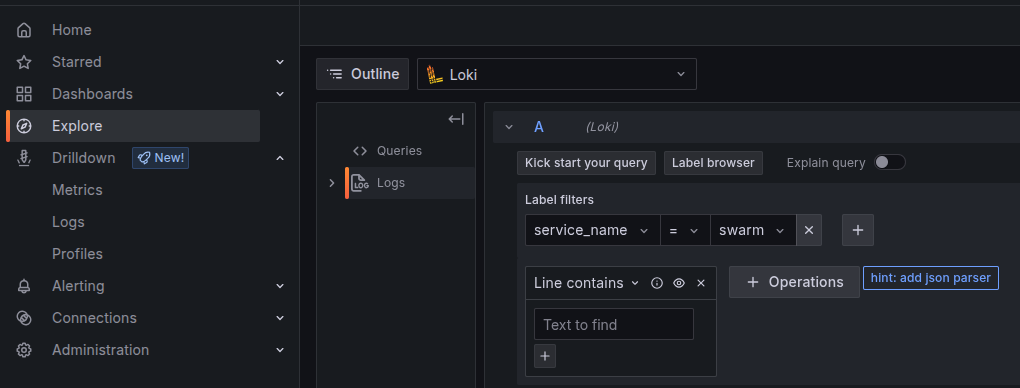
Open Explore and select Loki from the data source dropdown at the top of the page.
-
In the query builder that appears, click + Add label filter and set
service_name = swarm. You can add further filters - for examplelevel = ERRORto show only errors (the labels Loki has areservice_name,level,jobandexporter). When ready, click Run Query in the top-right corner.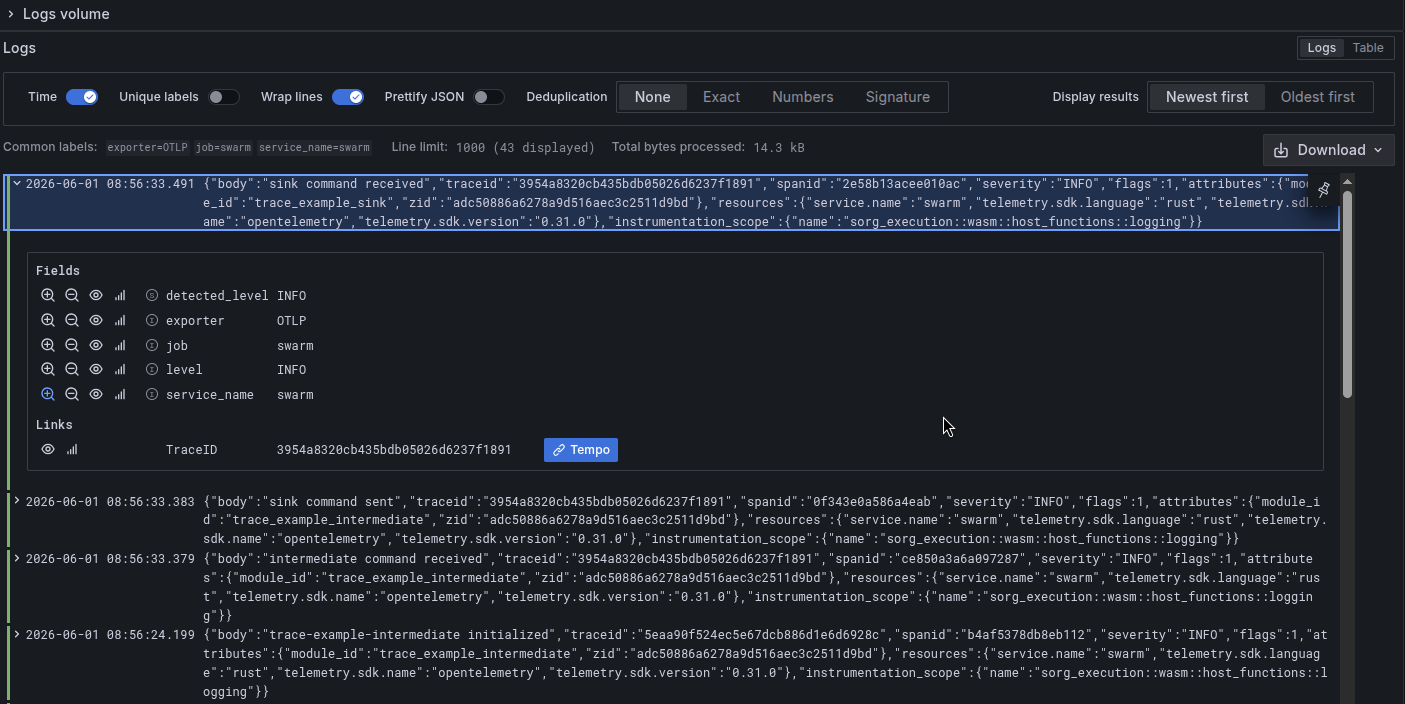
Log lines are shown newest-first in the results panel below the query builder. Each line shows the timestamp, log level badge, and message. You can expand any entry to see all attached key-value attributes. The counter's
Incremented count to …lines from Step 4 are there next to the runtime's own. -
Any log entry that belongs to a distributed trace will show a Tempo button on the right side of the row. Clicking it opens the full trace directly - this is the fastest way to go from a log message to the trace that produced it.
Tip: If you already know a trace ID (from
myrmic sendormyrmic telemetry logs), paste it into the LogQL query as{service_name="swarm"} |= "<id>"to see only log lines from that trace. The exported log body is JSON with the ID in atraceidfield, so{service_name="swarm"} | json | traceid = "<id>"works as well.
Traces
Traces are stored in Grafana Tempo and queried using TraceQL.
Traces can be reached two ways:
-
From a log entry: click the Tempo button next to any log line that has a trace ID (see above).
-
Directly: open Explore, select Tempo from the data source dropdown, then either paste a trace ID printed by
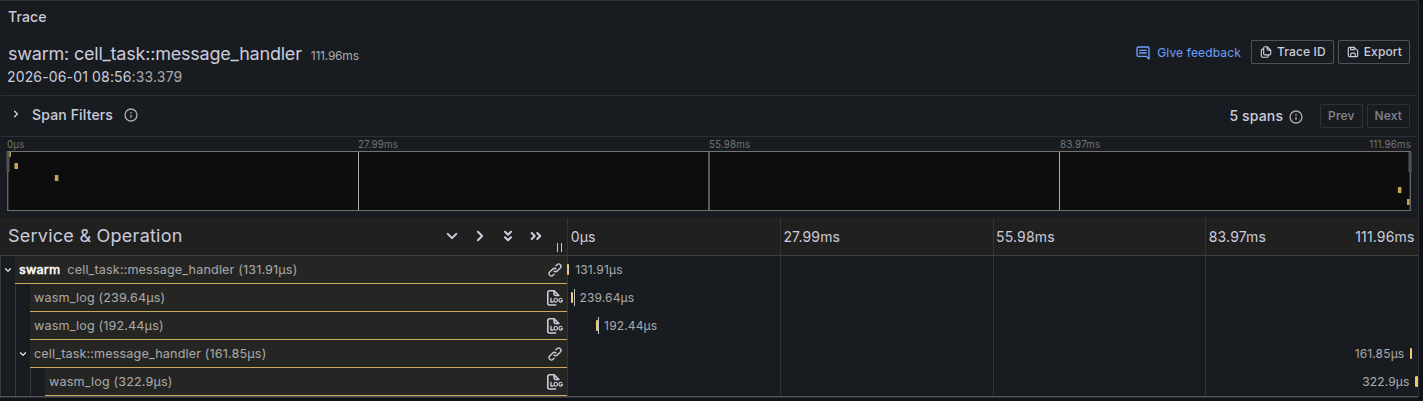
myrmic send, or use the Search tab and filter by service nameswarm. Eachincrementfrom Step 4 is a trace whose root span iscell_task::message_handler; the cell's log line is awasm_logspan. Traces show up within about a minute of the command.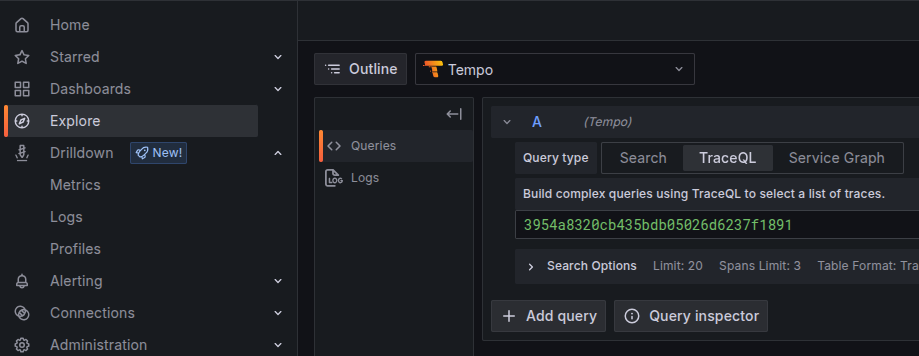
The trace view renders a timeline of spans. Each row is one span - a unit of work inside a single node. In Myrmic, spans typically appear sequentially: a parent span finishes before the spans it triggered appear, reflecting the asynchronous, message-driven nature of the system rather than a synchronous call stack. The horizontal position and width of each bar show when a span started and how long it took, making it easy to see the order of operations and spot latency between steps. Clicking a span expands a detail panel showing all its attributes.
Metrics
Metrics are stored in Prometheus and queried with PromQL. See the Grafana Prometheus data source docs for Grafana-specific query options.
Two ways to explore metrics:
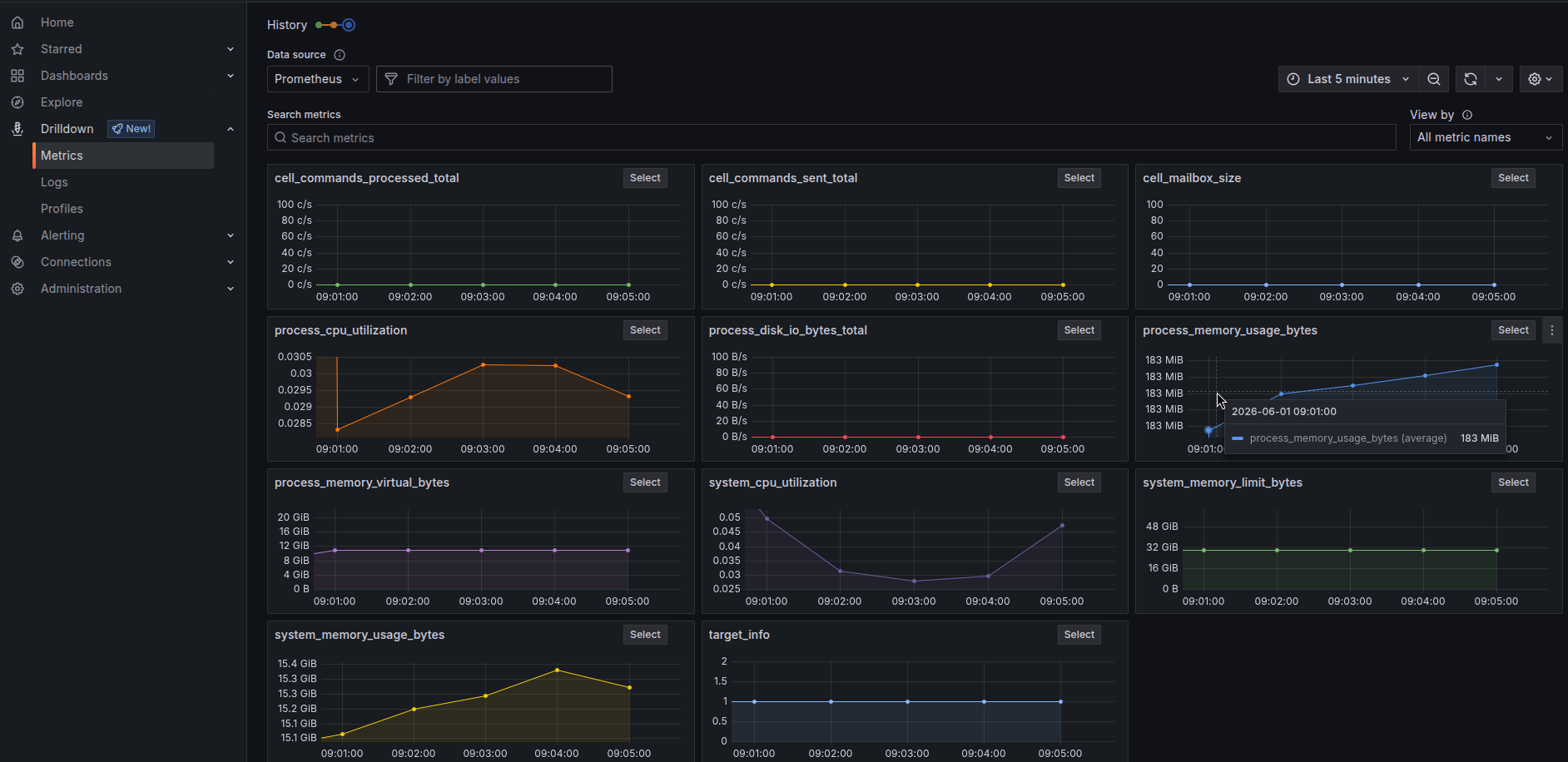
Metrics Drilldown (easiest for exploration): open the Drilldown app from the left sidebar. It lists all metric names reported by the runtime, grouped by prefix - cell_… for cell metrics such as cell_commands_processed_total and cell_mailbox_depth_…, process_… and system_… for the runtime process. Click any metric to see its current value, a time-series graph, and a breakdown by label. No PromQL knowledge required. As with the CLI, the first values arrive about a minute after the runtime started.
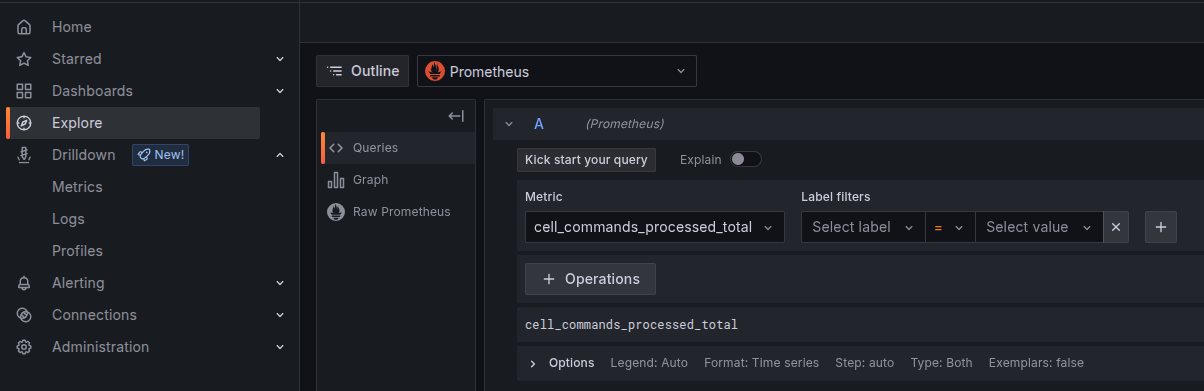
Explore view (for precise queries): open Explore and select Prometheus as the data source. Type a metric name in the query field - Grafana will autocomplete from the known metric list. From here you can apply PromQL functions such as rate() for per-second rates.
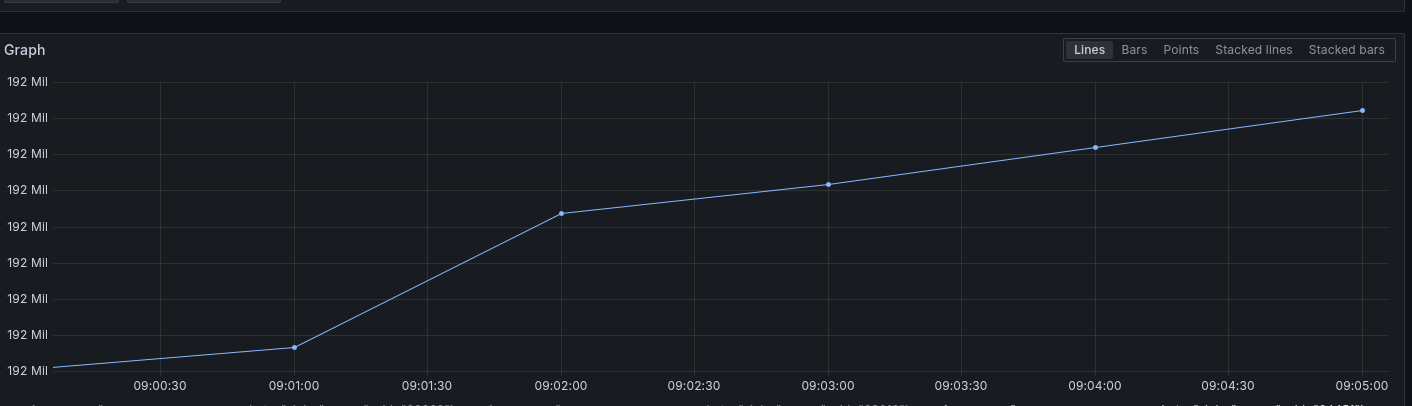
Results appear as a time-series graph and a table of raw data points below. Use the time range picker in the top-right corner to zoom in on a specific incident window.
Troubleshooting
No data in Grafana
: Three things must be true: the stack is up (docker compose ps in docker/otel-stack/), the otel_endpoint keys are set per signal (logs, metrics, traces) in the runtime configuration, and the runtime was started with a myrmic built with --features open-telemetry. A binary without the feature starts normally, prints nothing about export and exports nothing - check which myrmic (Step 1). A binary with the feature that cannot reach the collector logs opentelemetry_sdk lines with ExportError on its stdout.
Logs in Grafana but no traces
: Almost always the filter. A target filter such as swarm=info,warn excludes the cells' log target and the handler spans; env_filter: "info" gives you the traces within a minute.
Only the runtime's lines in Loki, none from the counter
: Same cause - see above. Cells log under sorg_execution::wasm::host_functions::logging, which a filter on swarm leaves out.
Grafana shows stale / old data only
: If you restarted the runtime without cleaning volumes, old data may still be present. Run docker compose down -v in docker/otel-stack/ to wipe everything and start fresh.
OTel collector connection refused
: Confirm the Docker stack is up (docker compose ps in docker/otel-stack/) and that port 4317 is not blocked by a firewall. The runtime keeps working and keeps retrying; the failed batches are dropped.
What Have You Learned
- The OTel exporter is a compile-time feature:
--features open-telemetry. The released packages do not have it, and a binary without it silently ignores the endpoints. - Export is configured per signal with
otel_endpointunderlogs,metricsandtraces, and per runtime - each runtime exports only what it emits itself, so every node you want in Grafana needs the feature and the endpoints. - The
env_filterfrom Part 1 also decides what is exported, spans included. - Configuration is read at start: adding endpoints means a restart, and only telemetry emitted afterwards reaches the collector. The internal DB and the
myrmic telemetrycommands keep working alongside. - In Grafana the runtime is the service
swarm; a trace ID frommyrmic sendfinds the same command in Loki and Tempo thatmyrmic telemetry logs --trace-idshowed in Part 1. - Volume is governed per runtime by the filter and the retention: keep
env_filternarrow, exclude noisy targets, and drop or shortendb_retentiononce Grafana is in place so the data is not stored twice.
Where to Go From Here
- The Observability guide summarises everything the CLI offers and when to use which command.
- The Runtime Configuration reference lists the remaining telemetry keys, including the batch settings that govern the export overhead.
- The Smart Greenhouse gives you a multi-cell application whose command hops make far more interesting traces than a single counter.